Manually Scheduling an Interview
Manually Scheduling Interview
This video guides you through the steps on how candidates can apply for a particular job and how recruiters can schedule their interview.
Step 1
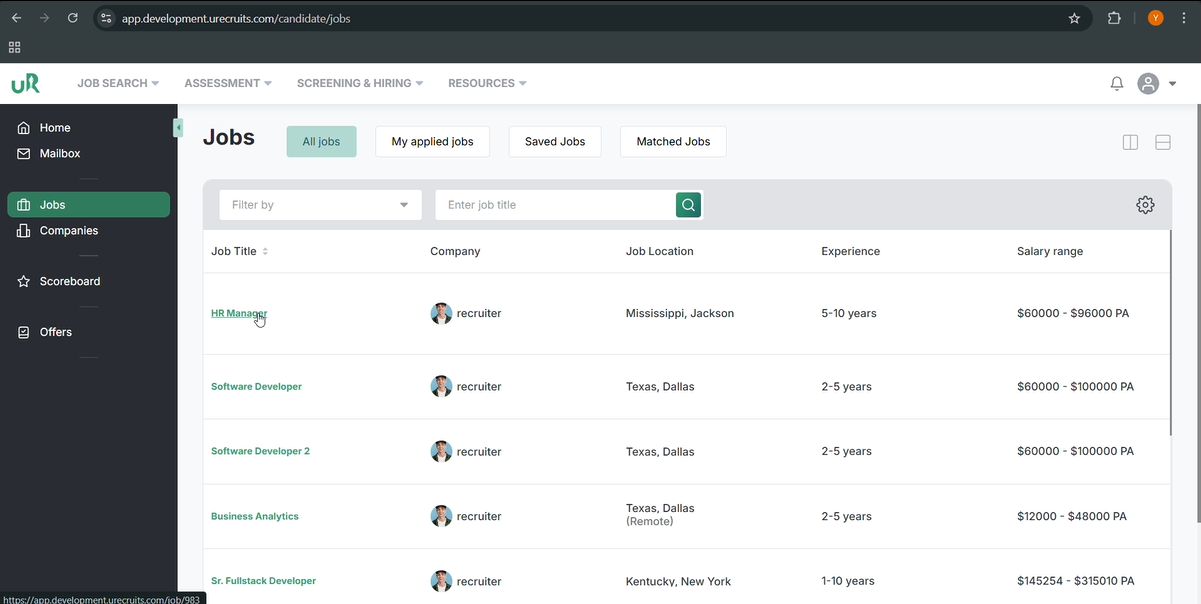
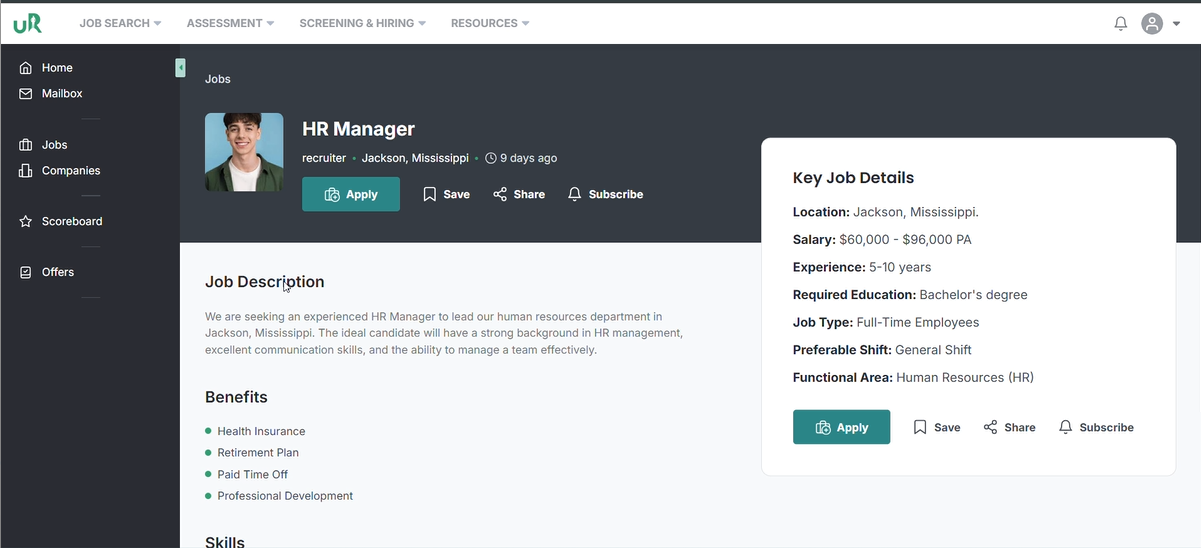
On the candidates interface, the candidate will apply for the job e.g., HR Manager by simply selecting it, and then clicking on the Apply button.
Step 2
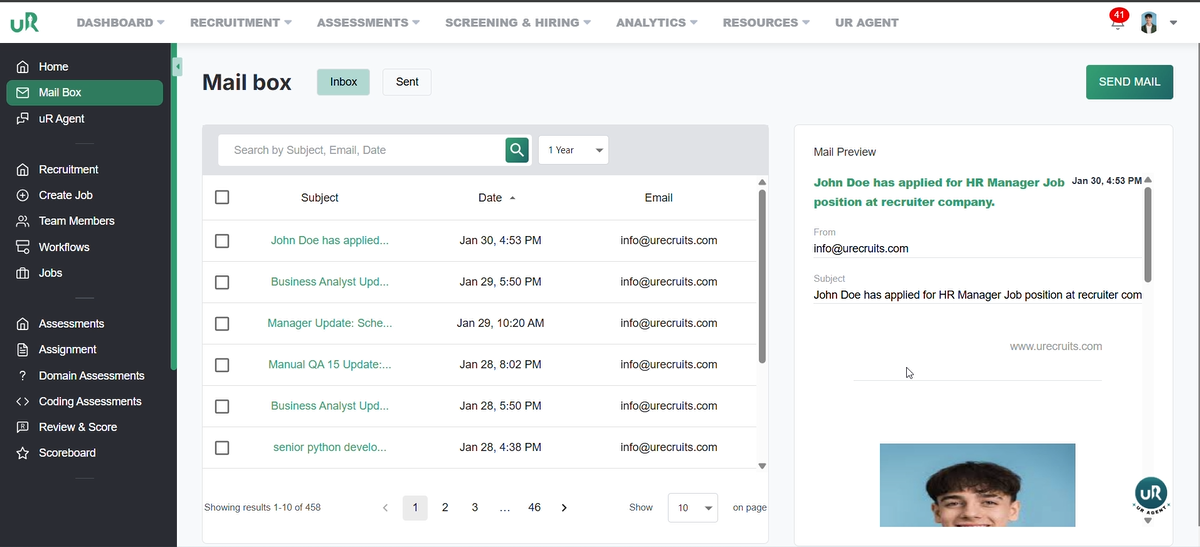
On the recruiters interface, the recruiter will be notified with a mail, which he can access by clicking on the Mail Box, where he will find the candidate who has applied for the job.
Step 3
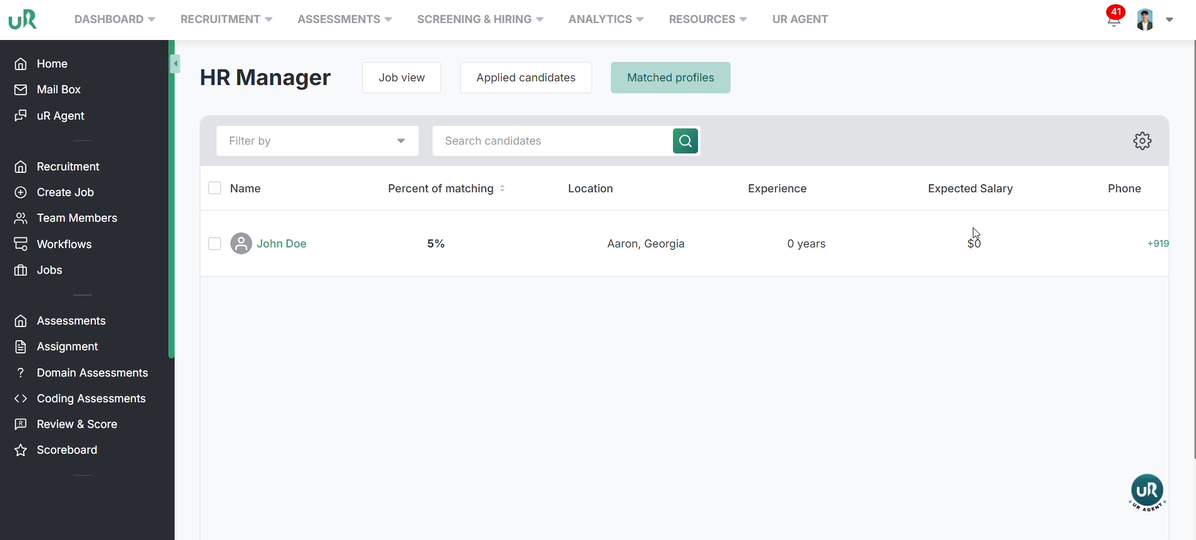
Now, on the recruiters interface, go to the Jobs section. Select the job posted e.g., HR Manager and click on it. You will get the list of the candidates applied.
Step 4
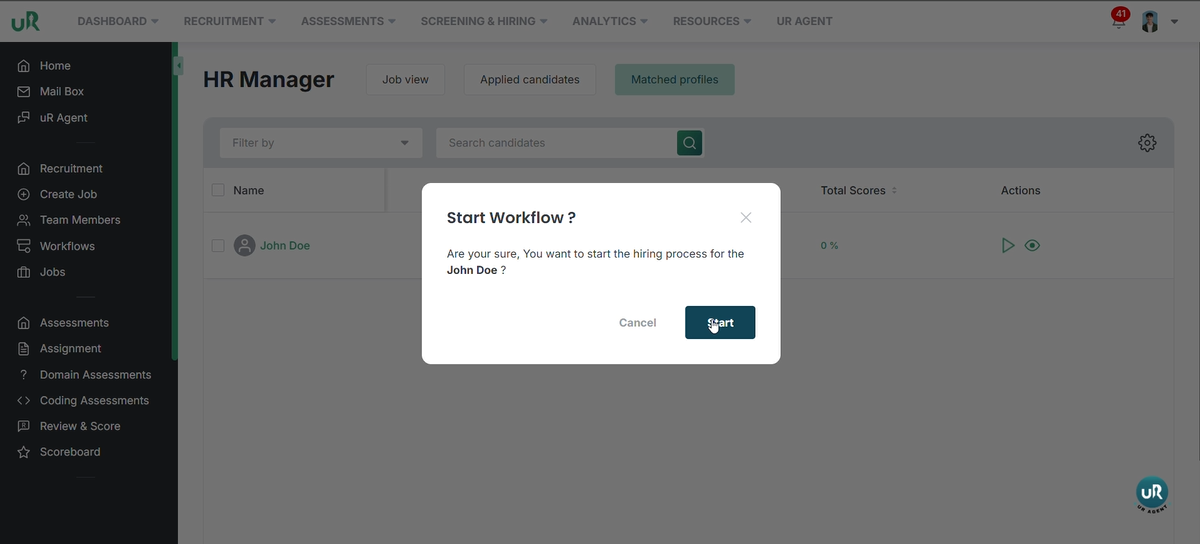
Start the workflow for the candidate by clicking on the Start Workflow button.
Step 5
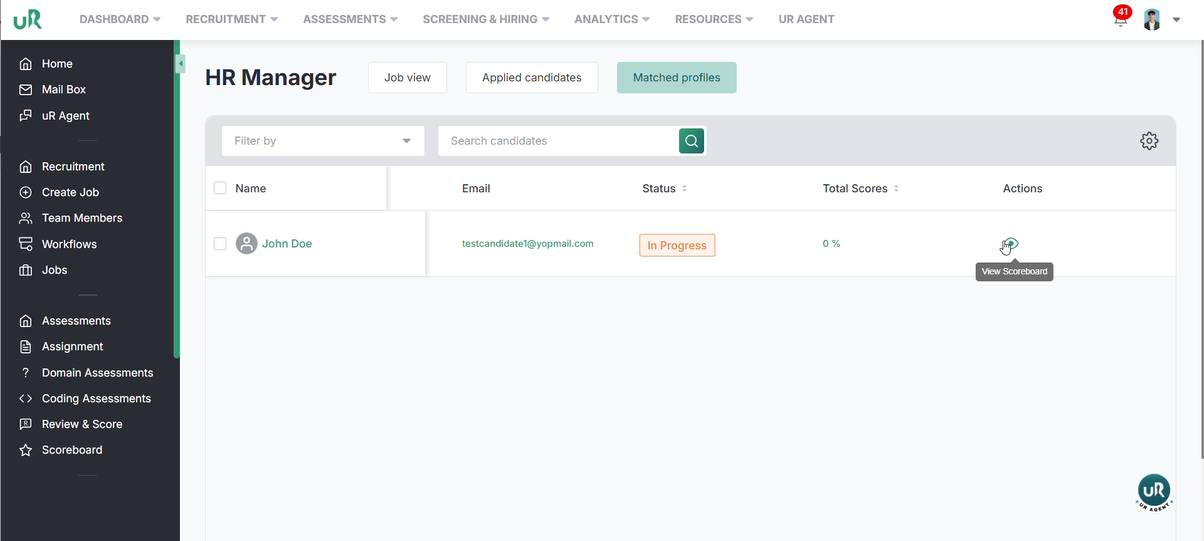
Once the workflow is started. Click on the View Scoreboard button to schedule the meeting.
Step 6
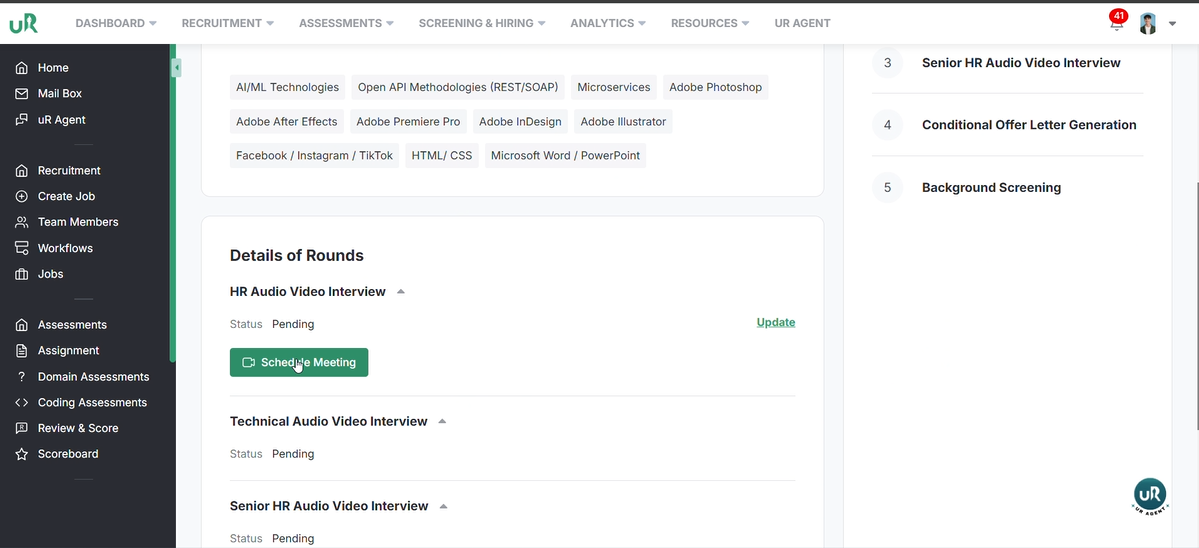
To schedule the meeting, click on the Schedule Meeting button.
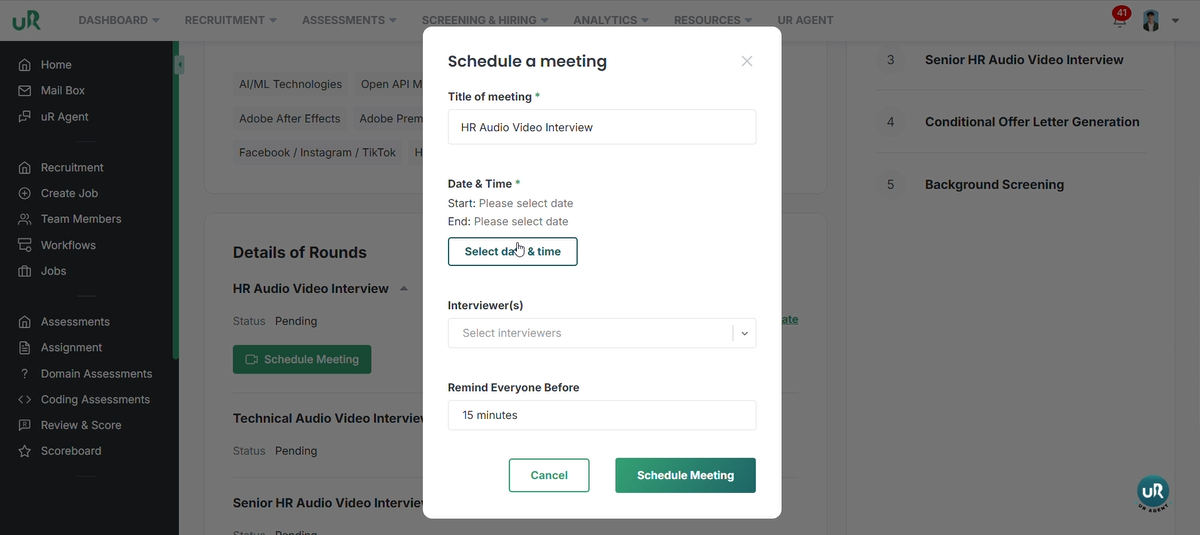
Set the title of meeting, date and time and other relevant fields. Once done, click on the Schedule Meeting button.
Step 7
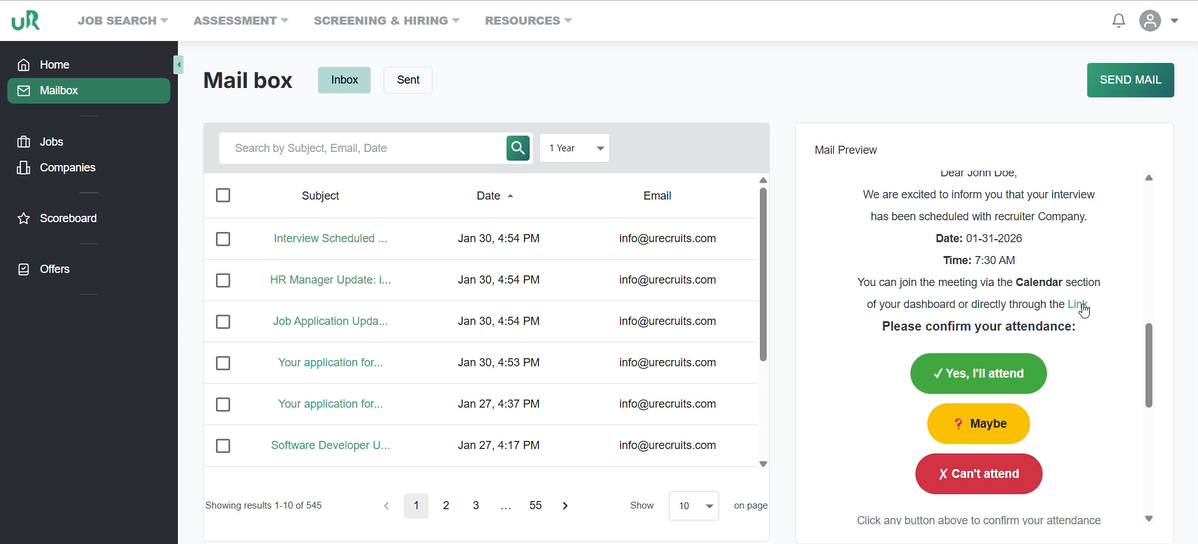
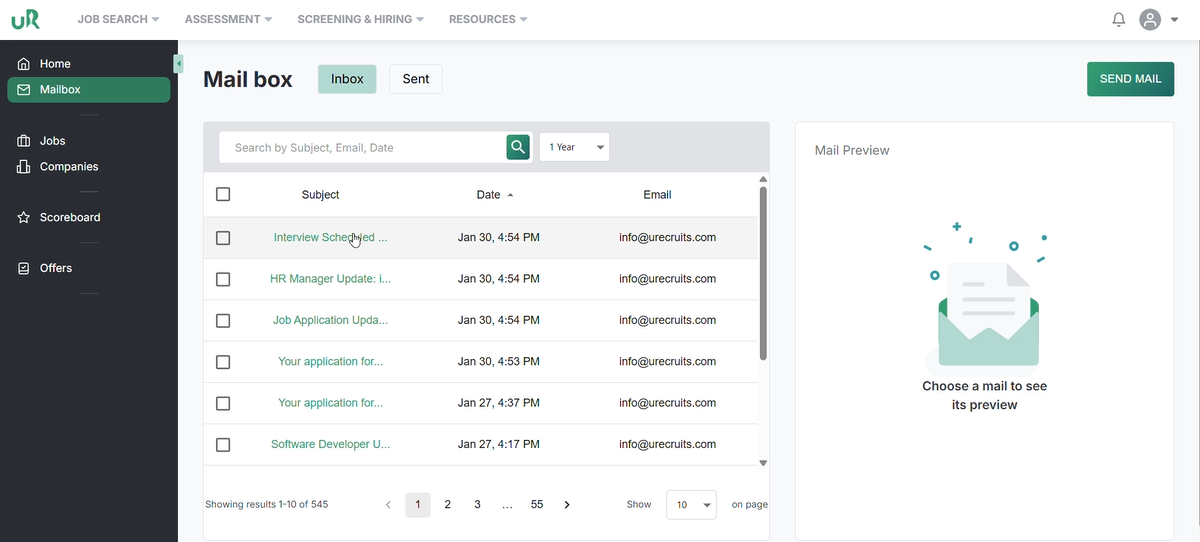
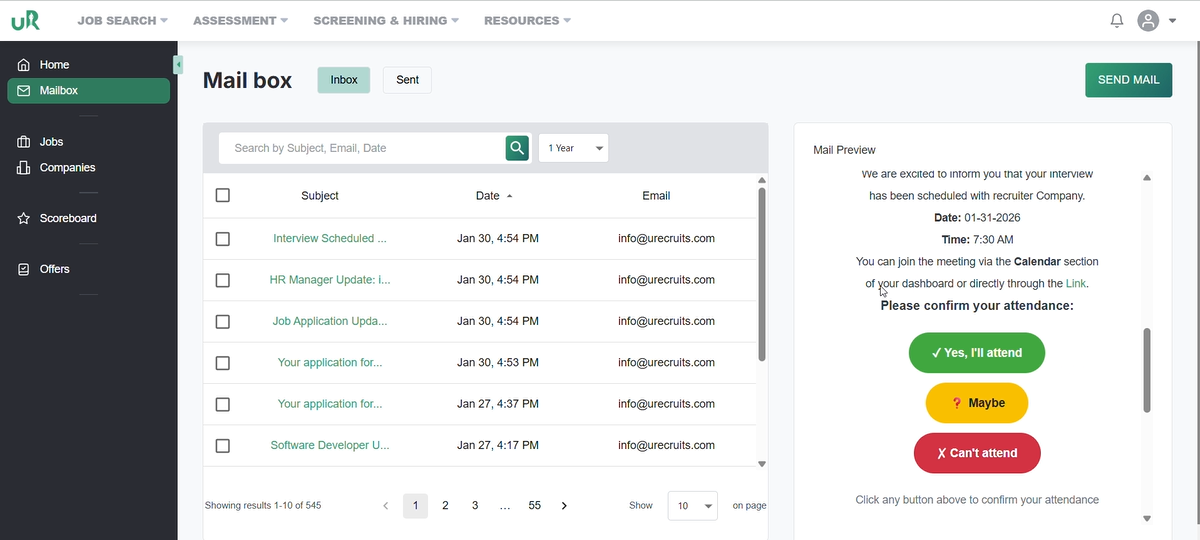
On the candidate interface, candidate will receive mail regarding the scheduled meeting.
Candidate can open the mail and respond with the relevant response e.g., Yes, I’ll attend
Step 8
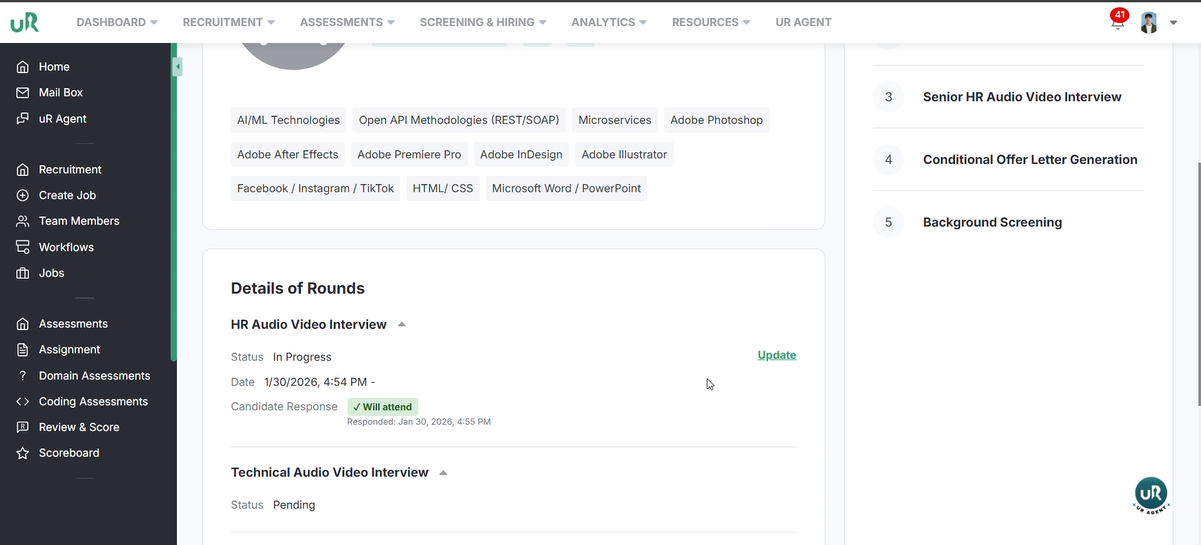
On the recruiter interface, in the candidates scoreboard, the status will be changed to Will attend.
Step 9
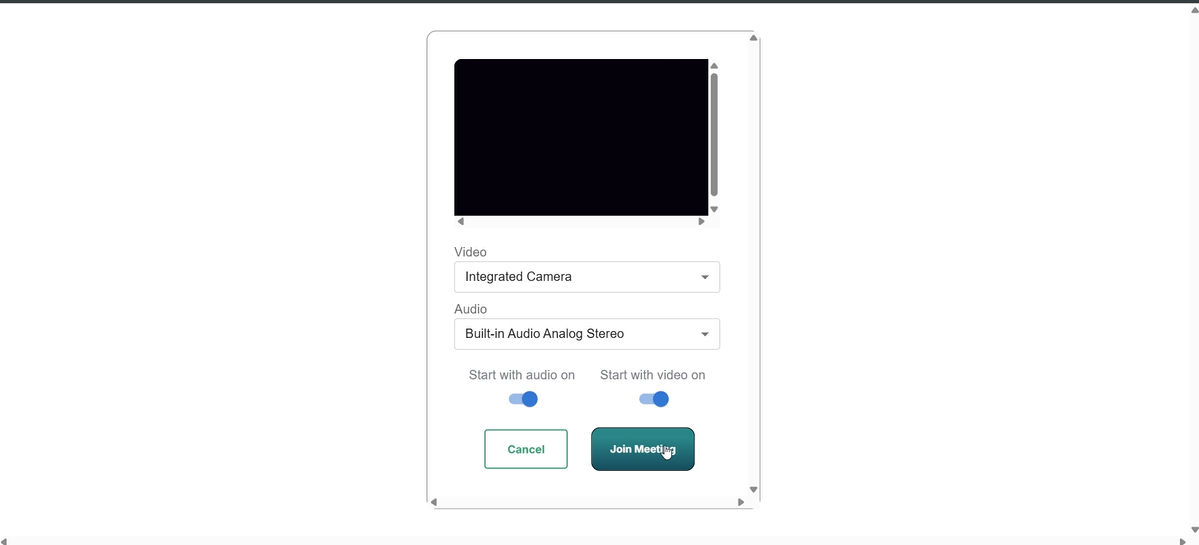
Now, the candidate can click on the link provided in the mail to start the meeting.
And, then by clicking on Join Meeting, he will be able to join the meeting.
Step 10
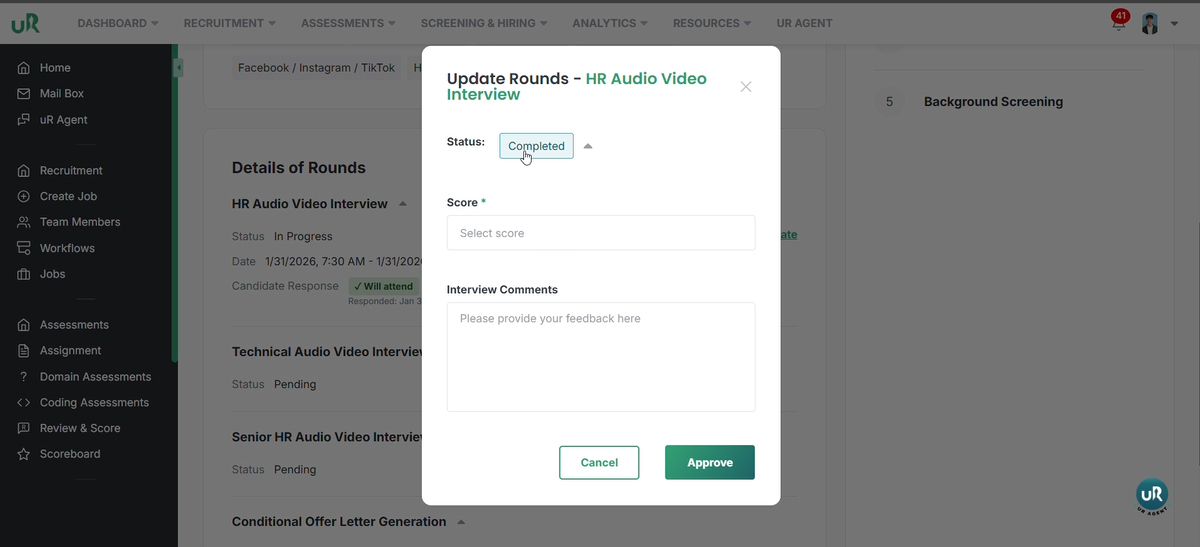
Once the meeting is complete. The recruiter can go into the candidates scoreboard and update the status, give him the score and comments.